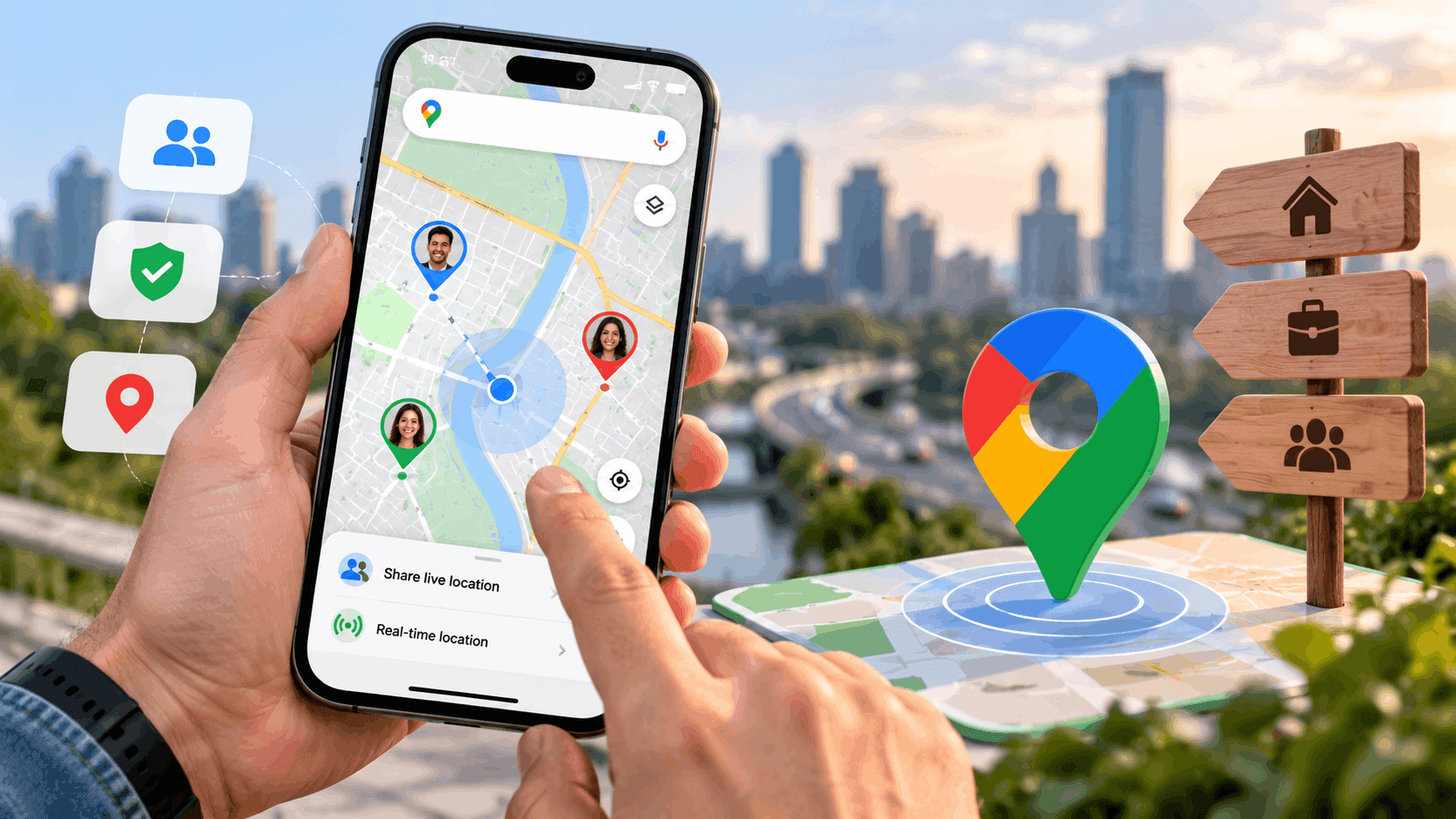
Live Location is the feature inside Google Maps that shares your real-time, moving position with someone else - not just a single pinned spot, but a dot that updates as you travel. It's what lets a friend watch you approach a meeting point, or lets a family member confirm you've left work and are on your way home. This guide covers what it actually is, how to turn it on, how to see someone else's, and what to do when it isn't working.
Key Takeaways
- Live Location shares your continuously updating position for a set time (15 minutes to 3 days); it is different from a single dropped pin.
- You start sharing from the Google Maps app, not from Google Search or your phone's general location settings.
- The person you share with needs a Google account and the Maps app, or a browser link, to view it.
- You can stop sharing at any time, from either device.
What Is My Live Location, Exactly?
"My live location" is your device's GPS position, continuously sent to Google Maps and displayed as a moving blue dot on a map - visible only to the people you specifically choose to share it with. It updates automatically as you move, unlike a static location pin that stays fixed once it's dropped.
This is different from location sharing on a family plan or a "Find My Device" feature: Live Location in Maps is a temporary, person-to-person share that you switch on and off yourself, built for a specific trip or window of time rather than permanent tracking.
How to See Live Location on Google Maps (Sharing Your Own)
On Android or iPhone:
- 1.Open the Google Maps app and make sure you're signed into your Google account.
- 2.Tap your profile picture in the top-right corner.
- 3.Tap Location sharing, then New share.
- 4.Choose how long to share for - a set number of hours, or "Until you turn this off."
- 5.Select who to share with: a contact from your phone, or generate a link to share manually.
- 6.Tap Share.
Your moving position now appears on the recipient's map in real time, for as long as the sharing window lasts.
On desktop (Google Maps in a browser):
- 1.Go to Google Maps and sign in.
- 2.Click the menu icon, then Location sharing.
- 3.Click Share location, choose a duration, and pick who to share with.
Desktop sharing relies on your computer's location accuracy, which is usually less precise than a phone's GPS, so most people set this up from a phone instead.
How to See Someone Else's Live Location
If someone has shared their live location with you:
- 1.Open Google Maps and tap your profile picture.
- 2.Tap Location sharing - anyone currently sharing with you appears in this list.
- 3.Tap their name to see their moving position on the map, along with their estimated arrival time if you're both navigating toward the same point.
If they sent you a link instead of sharing through a Google contact, opening that link in a browser shows the same live-updating map without requiring the Maps app.
How to See Your Current Location in Google Maps
Separate from sharing with another person, you can check your own current position at any time:
- 1.Open Google Maps.
- 2.Tap the blue target/compass icon in the bottom-right corner of the map.
- 3.The map re-centers on your current position, marked with a blue dot.
If the dot seems off, or shows the wrong city entirely, your device's location services or GPS signal - not Google Maps itself - is usually the cause.
Stopping Live Location Sharing
As the sharer: Profile picture → Location sharing → tap the person or "Stop" next to the active share.
As the viewer: you can't stop someone else's share, but you can simply close it on your end - it won't reappear.
Sharing also ends automatically once your chosen time window runs out.
Common Problems and Fixes
| Problem | Likely Cause | Fix |
|---|---|---|
| Location isn't updating | Weak GPS signal or restricted background app permissions | Move to an open area; check that Maps has "Always" or "While using" location permission |
| Recipient can't see the share | Wrong account signed in, or the link wasn't opened | Confirm both parties are using the correct Google account; resend the link |
| Location looks delayed | Device on low-power/battery saver mode | Sharing may pause to save battery; this corrects itself once the device is active again |
| Sharing stopped unexpectedly | Time window expired | Start a new share if you still need it |
Privacy Notes Worth Knowing
- Anyone you share with can see your movement pattern for the entire sharing window, not just your destination.
- Links generated for sharing can be forwarded by the recipient unless you're sharing directly through a Google contact.
- Ending a share removes future updates but doesn't retroactively hide where you already were during the session.
- Treat a live location link the same way you'd treat a spare house key: fine to hand to someone you trust for a specific reason, not something to leave lying around.
The Bottom Line
Google Maps Live Location turns "where are you?" into something you don't have to keep answering by text. Set a time limit, choose who sees it, and it turns off on its own - or you can end it early whenever you want. Once you've shared it once, checking how to see live location on Google Maps again shouldn't take more than the few taps outlined above.
Frequently Asked Questions
No - a link works in any browser. The app makes it more convenient (push notifications, arrival estimates), but it isn't required.
No. Live Location depends on an active data or Wi-Fi connection to update continuously; without one, your position simply stops updating until the connection returns.
No. Find My Device is for locating a lost or stolen phone, tied to your own account. Live Location is for voluntarily sharing your position with someone else for a limited time.
It's as accurate as your phone's GPS - typically within a few meters outdoors, less precise indoors or in dense urban areas with tall buildings.